Lendlord MTD Hub Compliance Guide: Submit Your HMRC Quarterly Update
Published · Updated · 6 min read
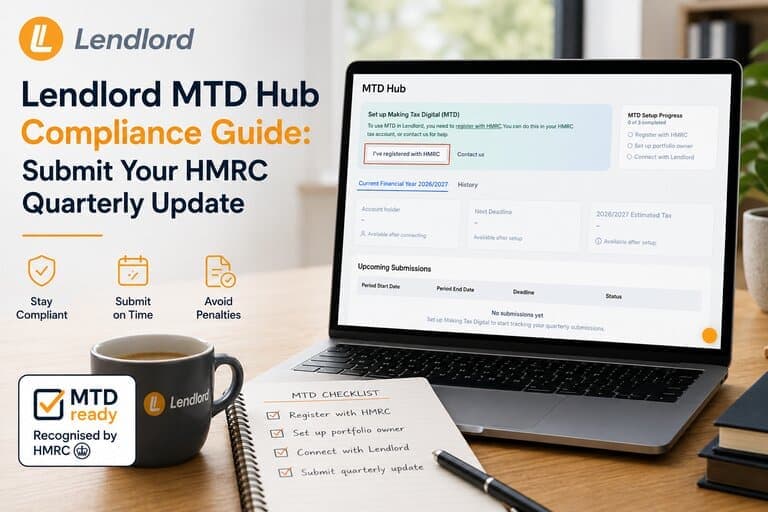
To submit a Making Tax Digital quarterly update in Lendlord, open Manage then Accounting then MTD Hub, confirm HMRC registration, verify the portfolio owner NINO, connect securely to HMRC, select the quarter, categorise mortgage interest, review income and expenses, and click Submit. You can quit and fix data before finalising.
If you searched for a Lendlord MTD Hub walkthrough or how to submit an HMRC quarterly update, this guide follows the full compliance deck slide by slide. You will prepare inside Lendlord, connect securely to HMRC, and submit with confidence. Lendlord is MTD-ready software for UK landlords and is approved by HMRC.
At a glance
- Path: Manage → Accounting → MTD Hub.
- Prep: HMRC registration + correct NINO.
- Connect: Secure handshake to HMRC online services.
- File: Choose quarter, categorise mortgage interest, review, submit.
- Control: Quit, fix in Accounting, then return to submit.
MTD Hub
Open your tax-ready workspace
Use Lendlord’s MTD Hub to prepare portfolio numbers, connect to HMRC, and submit quarterly updates. MTD Hub access is included in eligible Lendlord plans.
Explore MTD HubWhat this guide covers
This article follows Lendlord’s MTD Compliance Guide slide by slide. You will prepare inside Lendlord, connect securely to HMRC, choose the quarter, categorise mortgage interest, review totals, and submit.
Watch: MTD Hub quarterly submit walkthrough
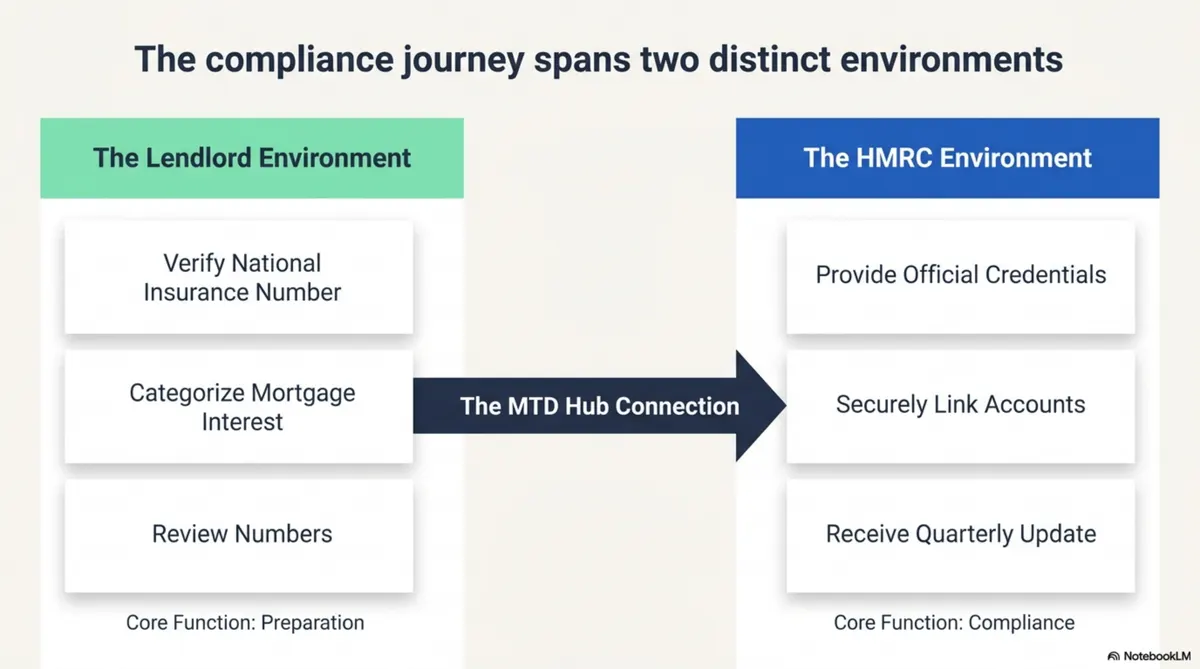
Two environments: Lendlord preparation and HMRC compliance
The journey spans two environments. In Lendlord you prepare: verify your National Insurance number, categorise mortgage interest, and review numbers. Through the MTD Hub connection you move into HMRC compliance: provide official credentials, securely link accounts, and complete the quarterly update.
Step 1: Locate the MTD Hub
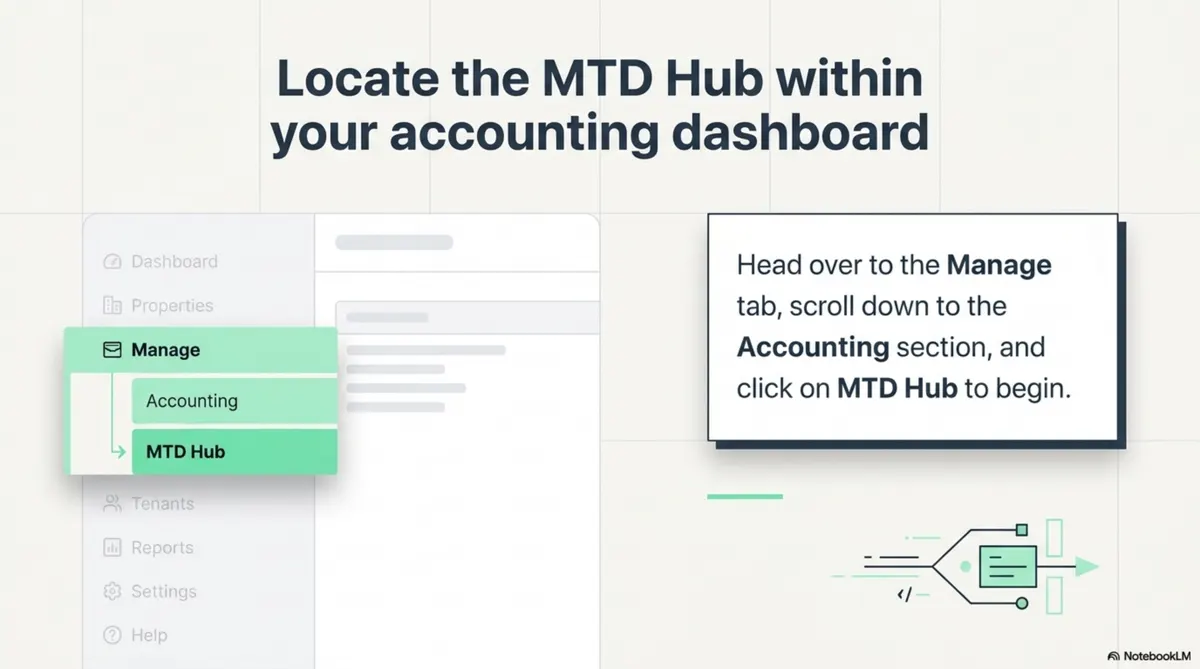
Log into Lendlord. Open the Manage tab, scroll to Accounting, and click MTD Hub. That is your starting point for every quarterly update.
Prefer a live walkthrough of the full flow? Pair this guide with the short video above and the free webinar.
Get MTD-ready
Run preparation and filing in one platform
Keep digital records, connect to HMRC, and submit quarterly updates from the MTD Hub.
Register for the MTD webinarStep 2: Unlock the hub with two prerequisites
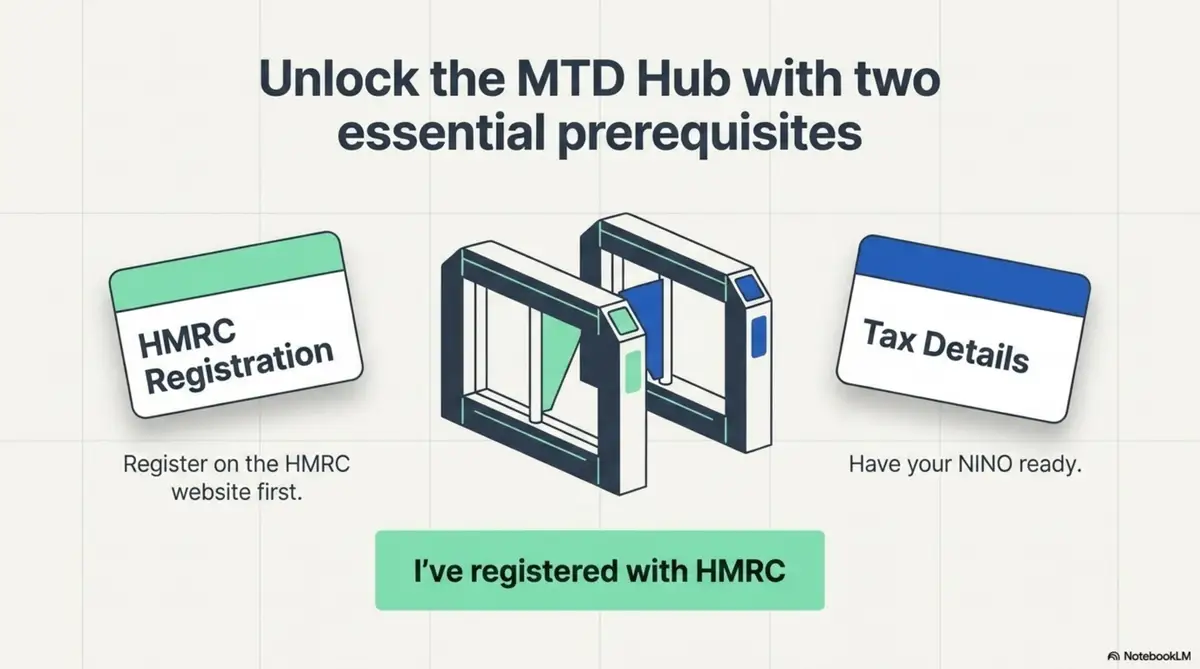
Before setup continues, you need two things. First, register for Making Tax Digital on the HMRC website. Second, have your tax details ready, especially your NINO. When both are done, click I’ve registered with HMRC in Lendlord to continue.
Step 3: Select the portfolio owner for this update
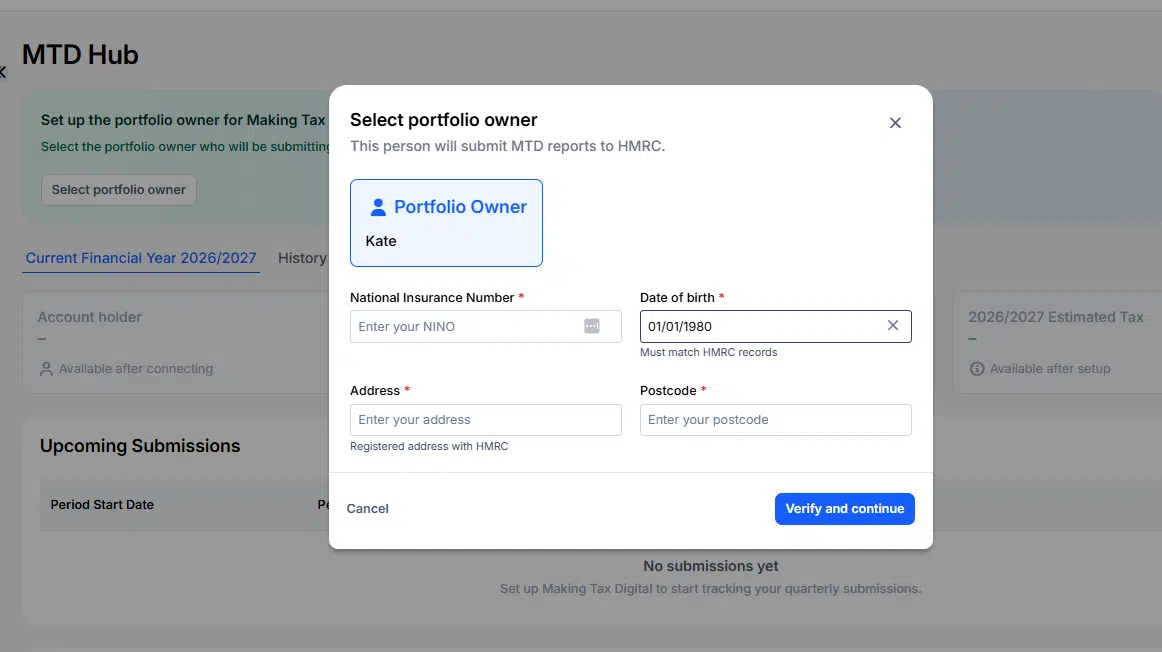
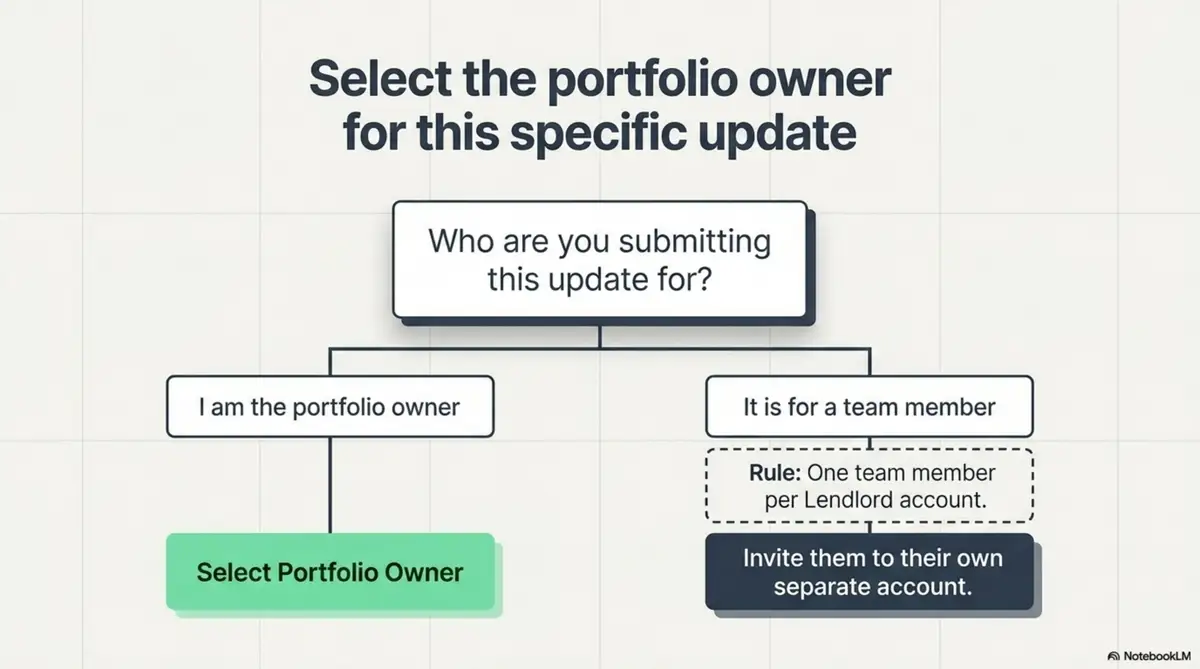
Ask who the update is for. If you are the portfolio owner, select yourself and continue. If the update belongs to a team member, remember the rule: one team member per Lendlord account. Invite them to their own separate account so each person submits from their own login.
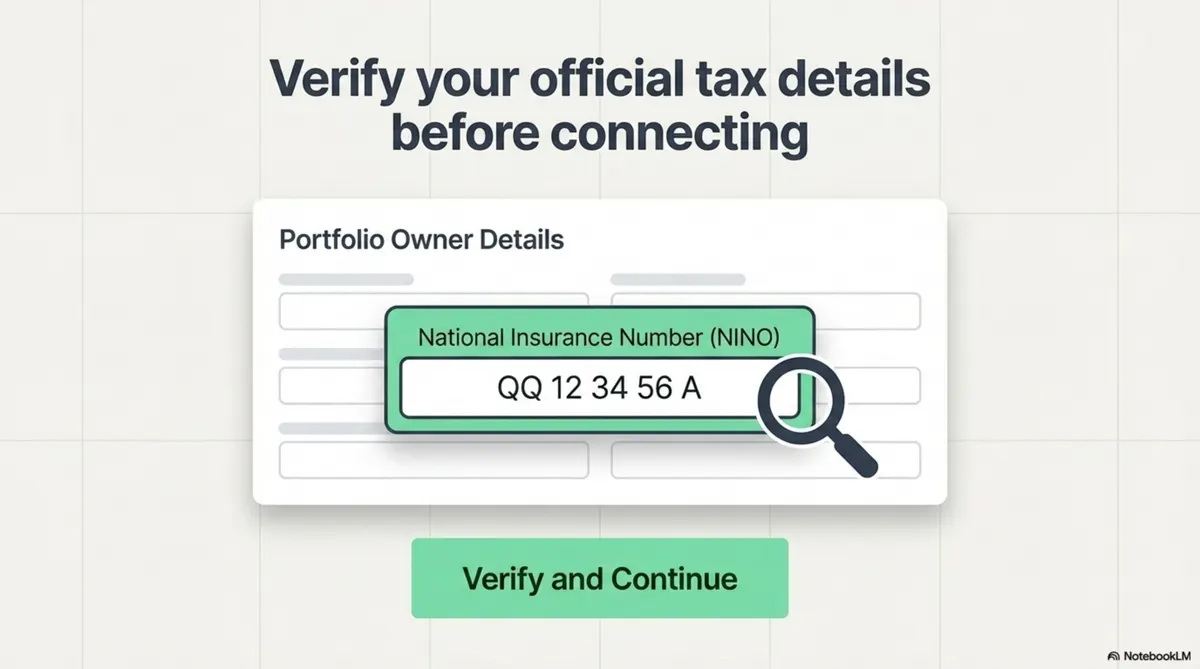
Step 4: Verify official tax details
Check the portfolio owner details carefully. Confirm the National Insurance number is correct before you connect anything. When it looks right, click Verify and Continue.
Step 5: Start the secure handshake with HMRC
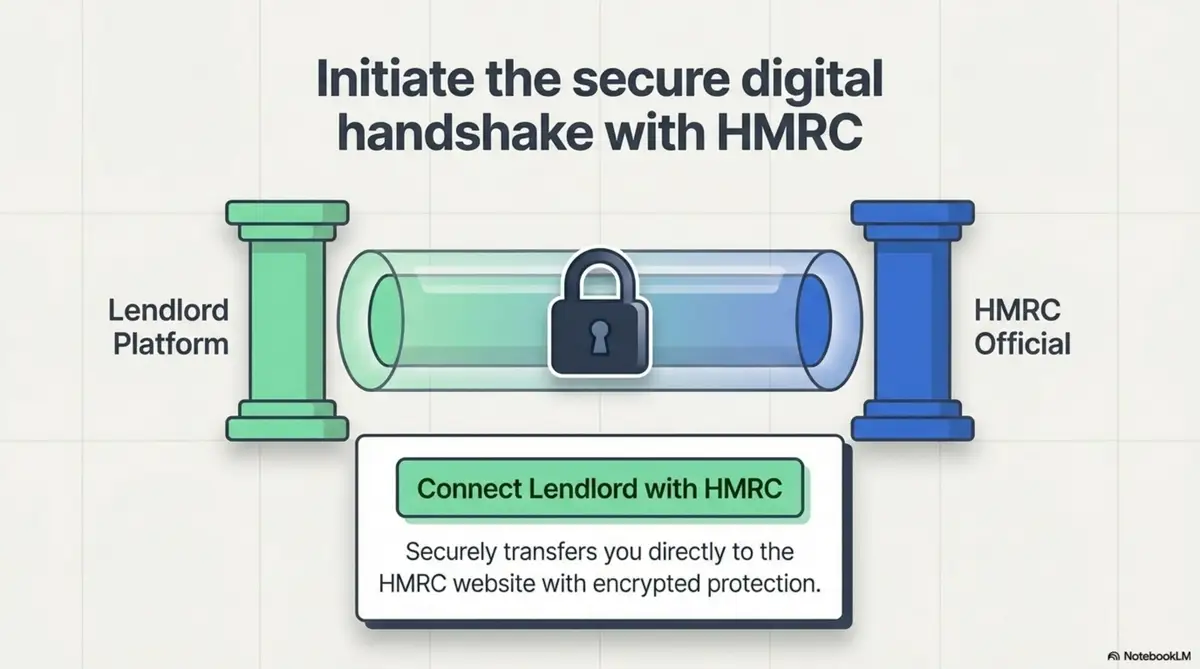
Click Connect Lendlord with HMRC. Lendlord transfers you to the HMRC website with encrypted protection. This is the bridge between your portfolio data and the official compliance environment.
Step 6: Authenticate on the official HMRC portal
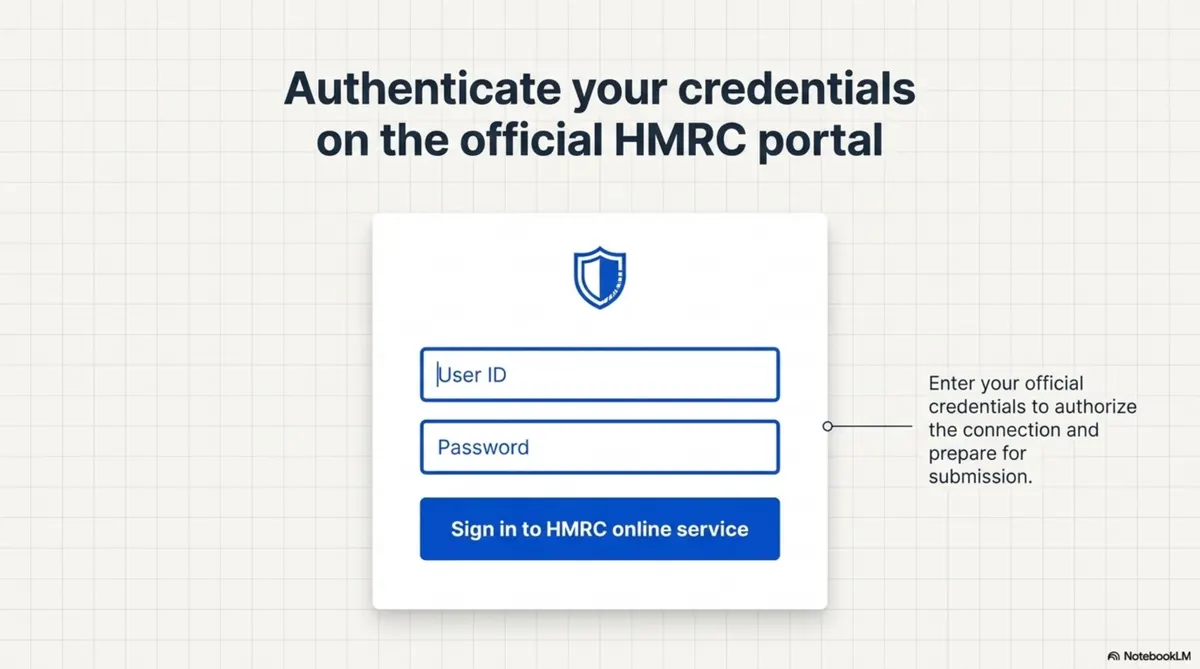
Sign in to the HMRC online service with your official credentials. That authorises the connection and prepares your account for submission. Prefer a live walkthrough? Join the MTD Hub webinar for a demo of this link.
Step 7: Select the quarterly period
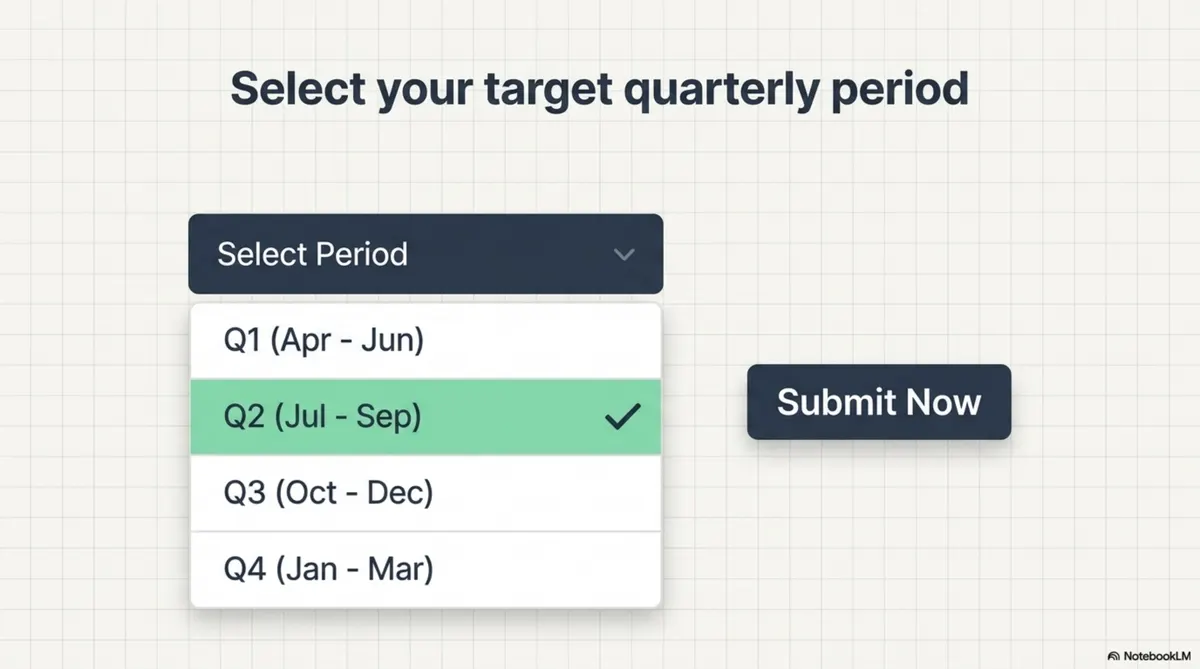
Back in the flow, choose the quarter you are filing for, such as Q1 (Apr to Jun) or Q2 (Jul to Sep), then click Submit Now. For Phase 1 landlords, the first 2026/27 deadline is still 7 August 2026 for the period from 6 April to 5 July. See also what to submit by 7 August 2026.
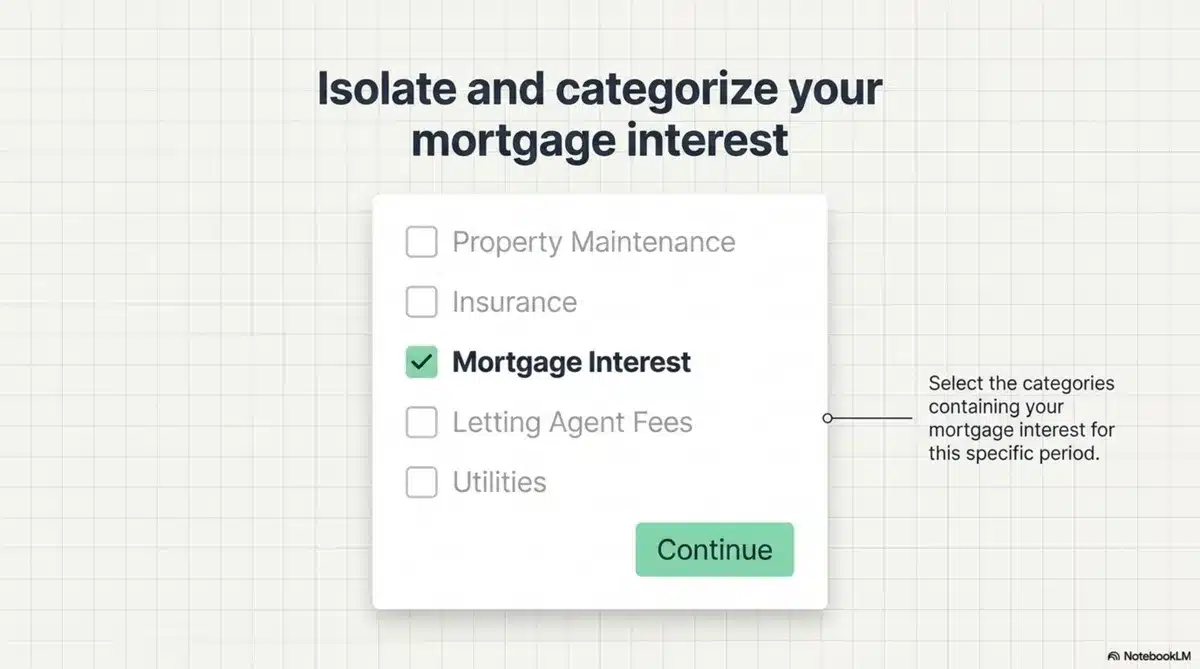
Step 8: Isolate and categorise mortgage interest
Select the expense categories that contain your mortgage interest for that period. Clear categorisation keeps the quarterly update accurate and easier to defend if HMRC asks questions later.
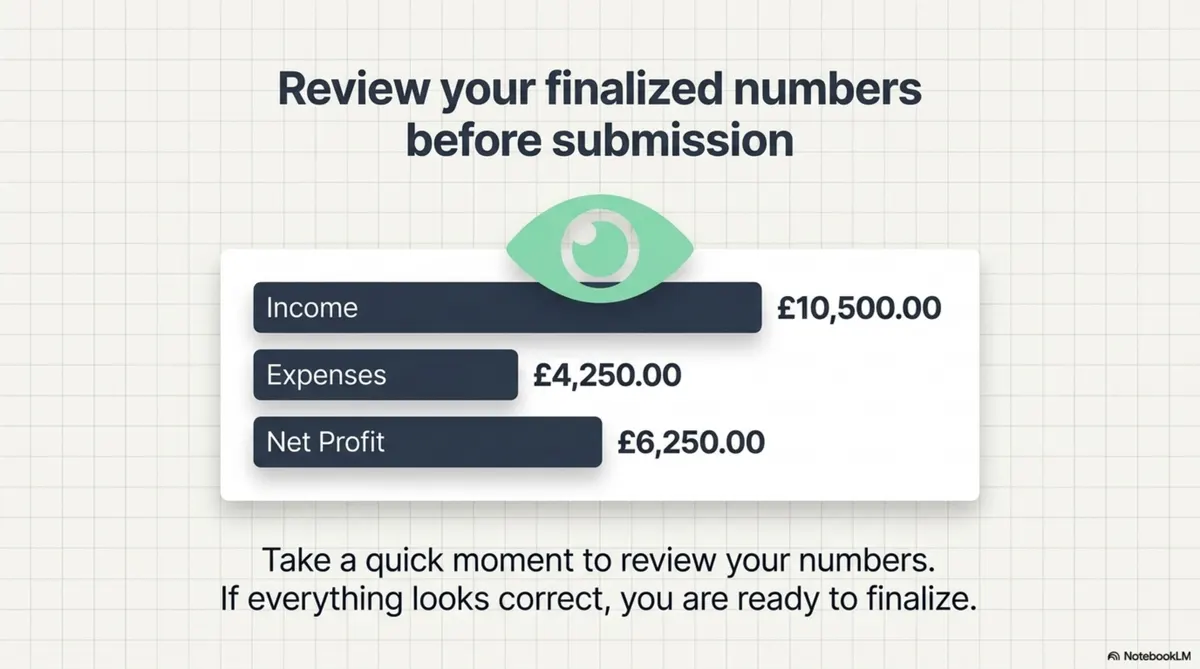
Step 9: Review income, expenses, and net profit
Take a moment to review the summarised numbers before you finalise. Check income, expenses, and net profit against your own records. If everything looks correct, you are ready to submit.
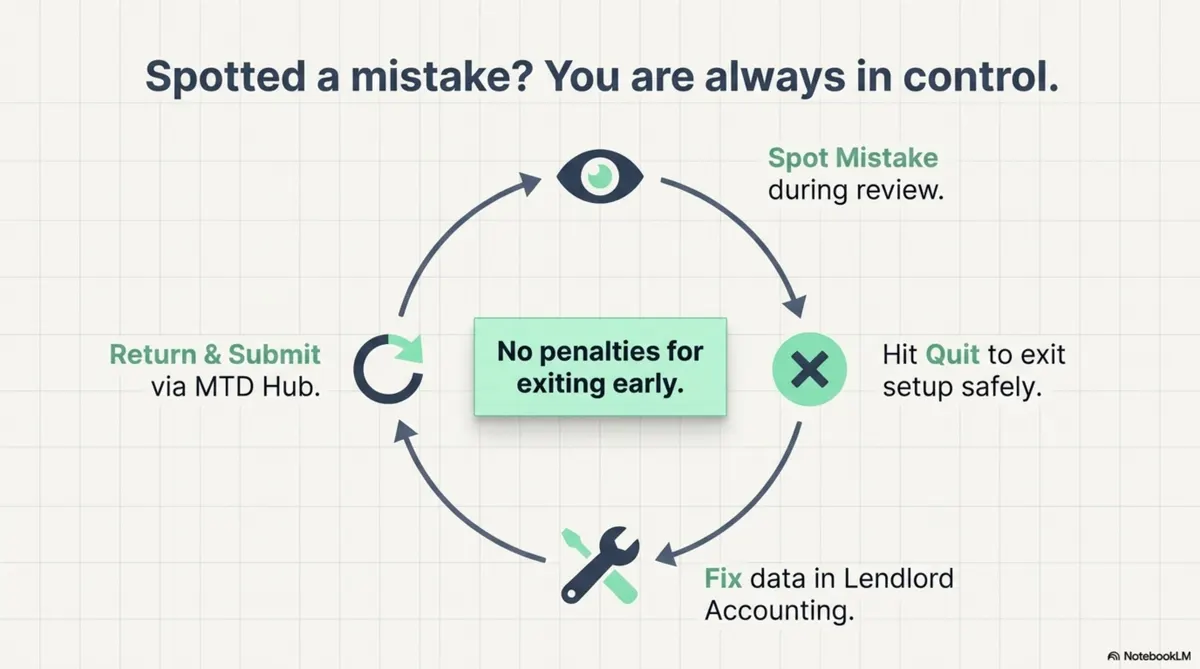
Spotted a mistake? Stay in control
If something looks wrong, you are not trapped. Spot the mistake during review, hit Quit to exit setup safely, fix the data in Lendlord Accounting, then return and submit via the MTD Hub. The guide is clear: there are no penalties for exiting early to correct your books.
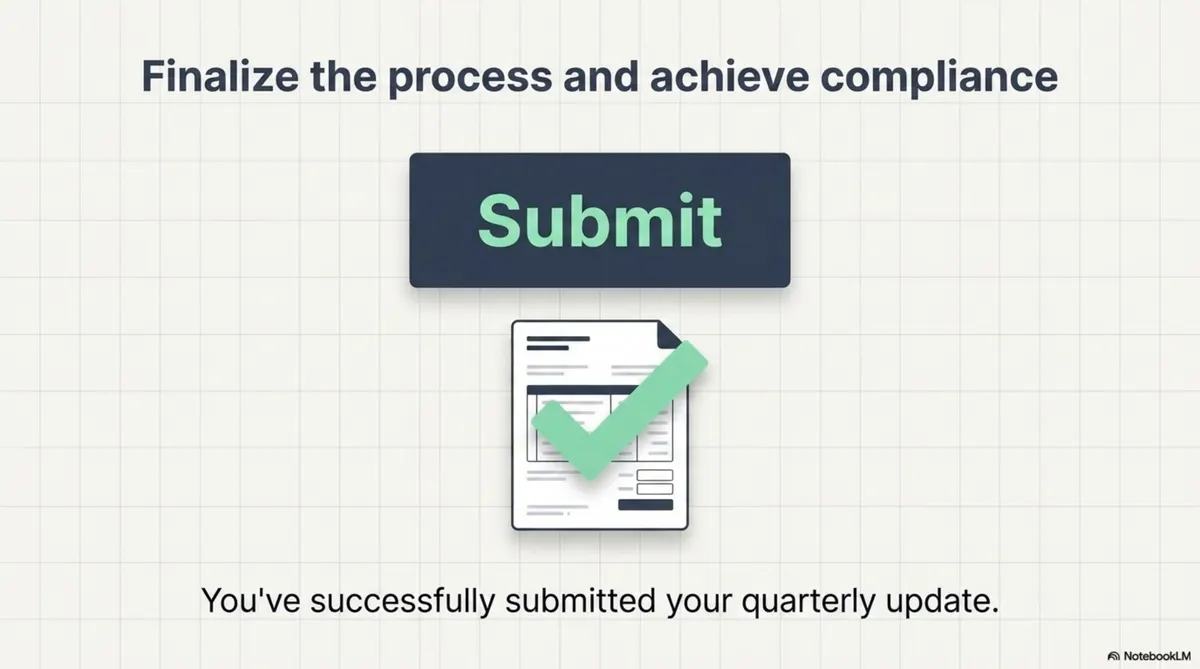
Step 10: Finalise and achieve compliance
When the numbers are right, click Submit. You have successfully submitted your quarterly update.
Need help? Real human support
If you get stuck, reach out via the in-app chat for human guidance. Software should make the path clear, and support should be there when a step feels unfamiliar.

The MTD Hub as your compliance engine
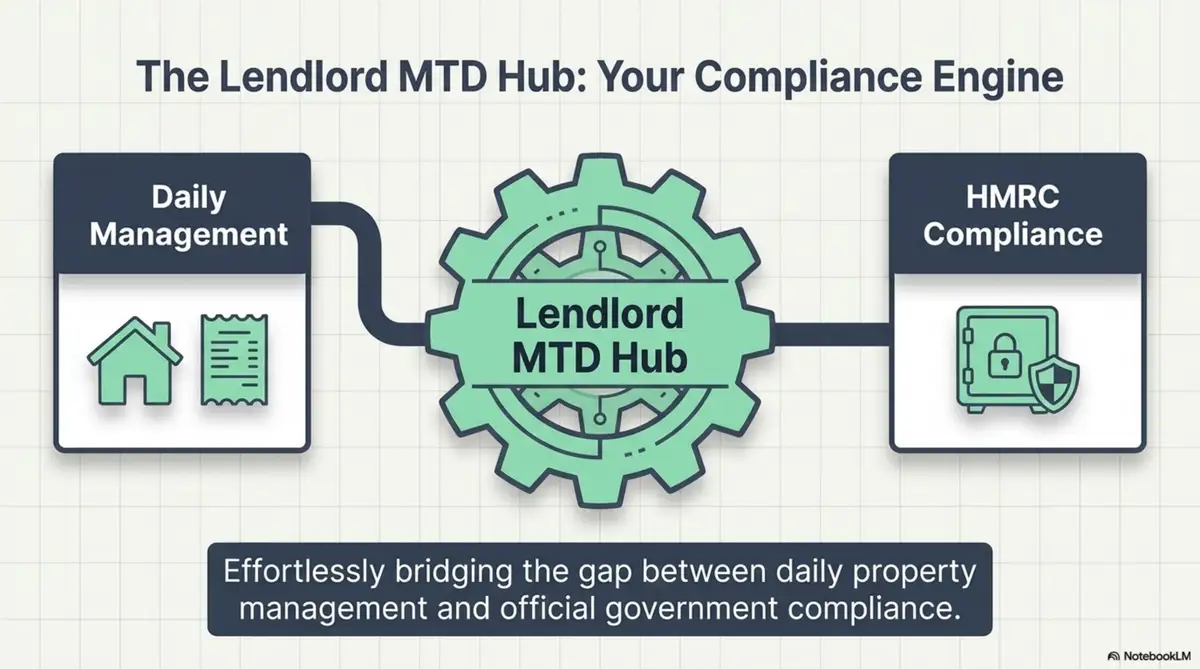
Daily management (properties and records) feeds the Lendlord MTD Hub, which bridges into HMRC compliance.
Lendlord is MTD-ready software for UK landlords and is approved by HMRC. Keep invoices and ownership proofs beside the numbers you file each quarter.
Prepare first
Keep evidence beside your quarterly numbers
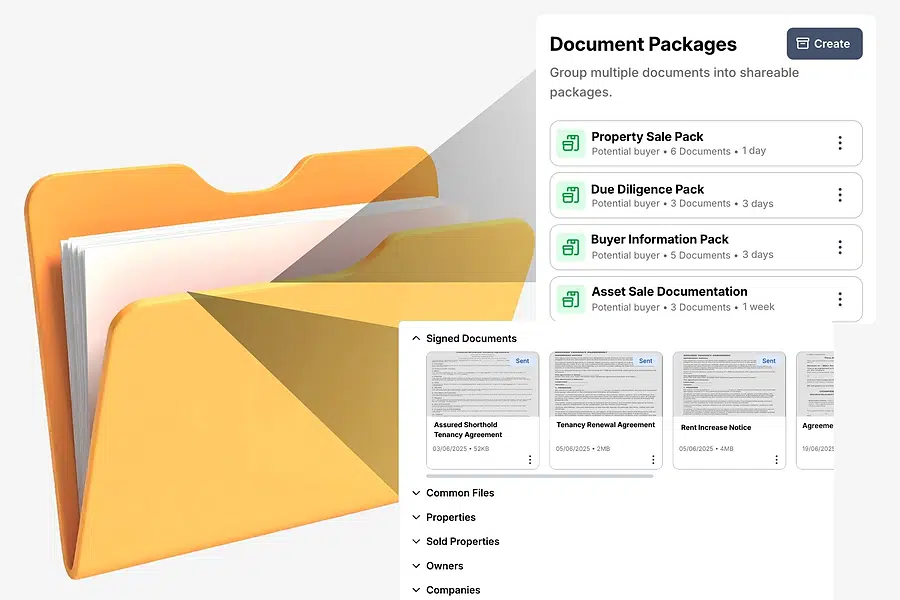
Store invoices and ownership proofs before you open the MTD Hub, so review is faster.
Open document managementFrequently asked questions
Where do I find the MTD Hub in Lendlord?
Go to Manage, scroll to Accounting, and open MTD Hub. That is where you prepare and submit quarterly updates.
What do I need before connecting to HMRC?
Register for Making Tax Digital with HMRC first, and have your National Insurance number ready to verify the portfolio owner.
Can I submit for another team member from my account?
One team member submits per Lendlord account. Invite other owners to their own accounts so each person files from their own login.
What if I spot a mistake during review?
Quit setup safely, fix the data in Lendlord Accounting, then return to the MTD Hub and submit. You stay in control before finalising.
Related guides for UK landlords
Work through the MTD Hub once with clean records, then repeat the same path every quarter.
Get MTD-ready on Lendlord
Expert insight from Aviram Shahar, Co-Founder and CEO of Lendlord · PropTech entrepreneur · Last updated July 2026
Official data sources
Confirm live MTD rules and software requirements before you submit.